Table of Contents
Migrating mailboxes from one Microsoft Exchange environment to another, or to Office 365, can feel like a high-stakes task. Email is the backbone of business communication, and any disruption can cost time, money, and trust.
In this guide, we walk through how to use one of the popular Exchange migration tool, Stellar Migrator for Exchange, and give an honest review of its strengths and limitations.
What Is Stellar Migrator for Exchange?
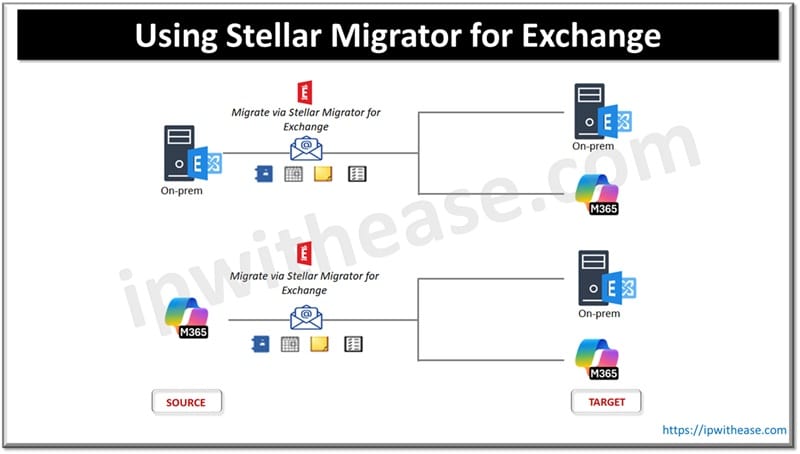
Stellar Migrator for Exchange is software specially developed to help organizations move mailboxes, public folders, contacts, calendars, and other Exchange data between:
- On-prem Exchange servers (different versions)
- From on-prem Exchange to Microsoft 365 / Exchange Online
- Between different Office 365 tenants
It helps in simplifying the migration process without requiring extensive scripting/manual configuration.
How to Use Stellar Migrator for Exchange to Cloud (Microsoft 365) Migration – Step by Step
Step 1: Download the Software
After registering through the Stellar Migrator for Exchange website, you receive an email containing your login credentials, access details for the Licensing Portal (stellarlicenseserver.com) and download link. Click on the download link or access it directly through the Licensing Portal.
Step 2: Installation
Complete the installation process as per the on-screen instructions. Once the installation finishes, launch the software. No additional configuration is required.
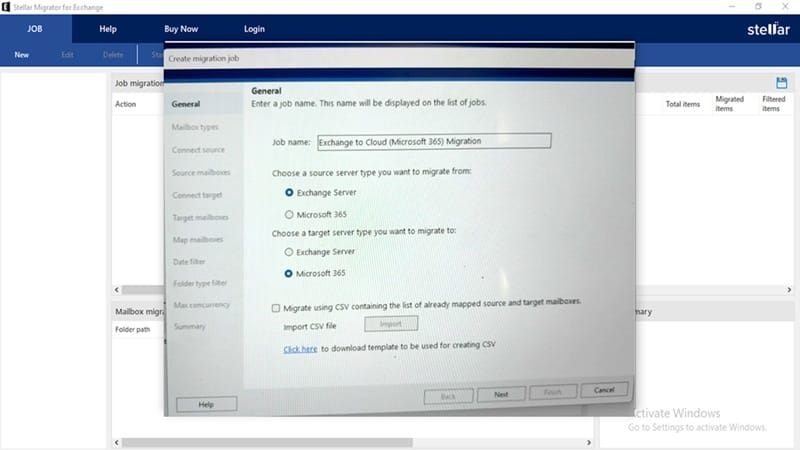
Step 3: Creating Migration Job
Create a migration job to migrate mailboxes (include emails/calendars/contacts/other data) from one Platform or an Exchange server to another. Configuring General Settings is the first step to create a migration job. First is to provide a name to the migration job and then, choose the source (from where you are migrating the data) and target (where the data will go) server types.
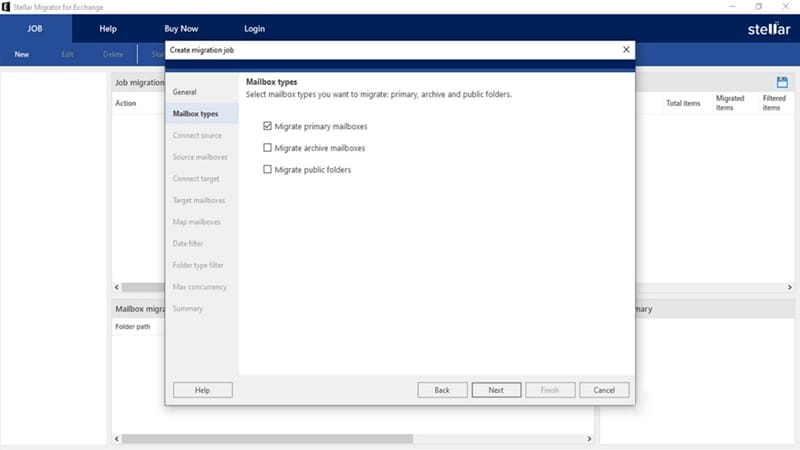
Step 4: Selecting Mailbox type
Select the mailbox type that you want to migrate from the given options (primary mailboxes, archive mailboxes, and public folders).
Step 5: Connecting Source
Connect the software to the server you want to migrate the mailboxes from. There are two options for that:
- Autodiscover (By entering the Email address and Password and the software will automatically connect to the source server)
- Manual (By entering the complete details of the server like IP address/ Exchange Server name, Email address, and Password).
Step 6: Source Mailboxes
From the list of mailboxes obtained from the source server, choose the option “Load Mailboxes Using CSV” and upload a CSV file with all the mailboxes. This is useful if there are more than 100 mailboxes.
Step 7: Connecting Target
Here we are taking Microsoft 365 as target. Next step is to authenticate the target server to establish a secure connection. Here modern authentication with Active Directory Authentication Library and OAuth 2.0 are used to safely access and transfer data. Again, two methods can be used to register the target connection:
- Auto registration
- Manual registration
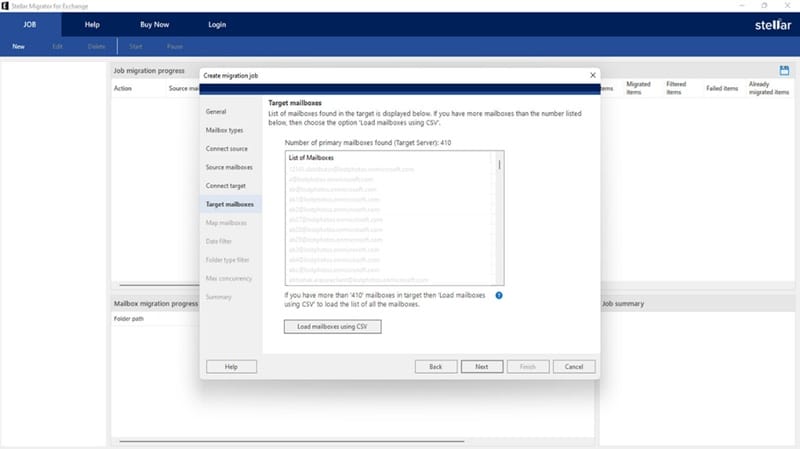
Step 8: Target Mailboxes
The mailboxes in the destination server can be accessed. Select the Load Mailboxes using CSV to view all the mailboxes.
Step 9: Mapping Mailboxes
The unmapped mailboxes can be mapped manually in case the user names did not match.
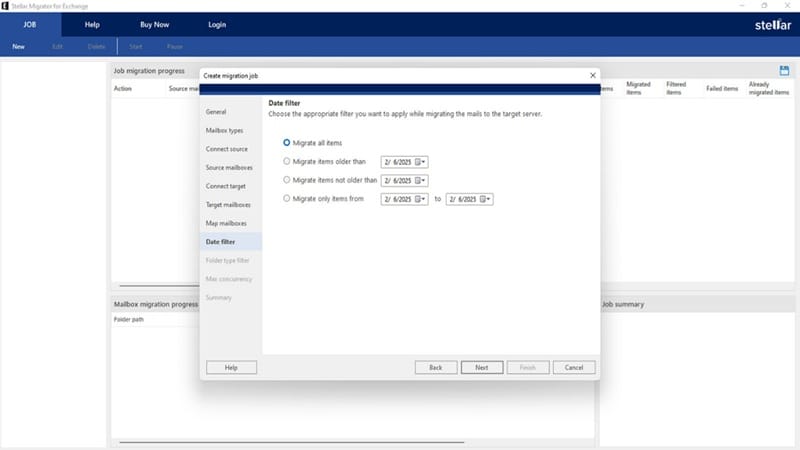
Step 10: Applying Date filter
Apply a date filter to migrate the mail items from a specific date range.
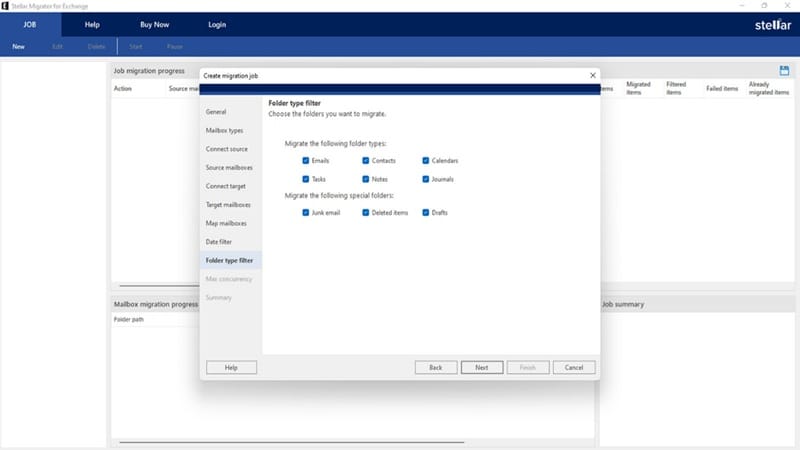
Step 11: Applying Folder type filter
Select the folder types you want to migrate. Unnecessary or irrelevant folders can be excluded using this filter.
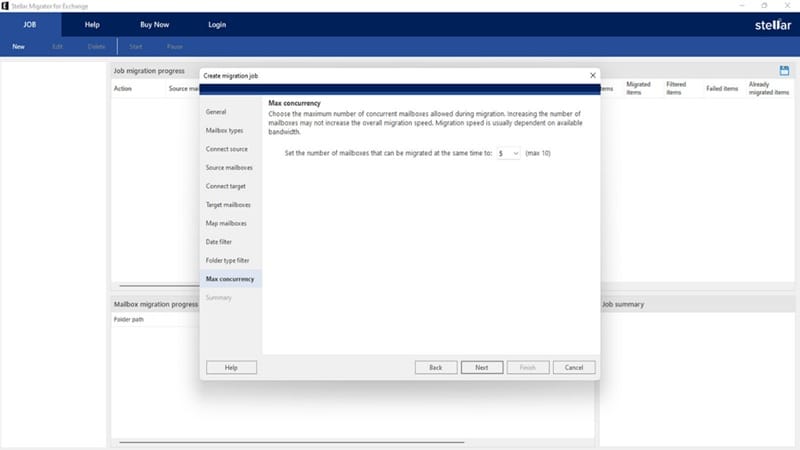
Step 12: Selecting Max Concurrency
Select the number of mailboxes you want to migrate simultaneously. Up to 10 mailboxes can be selected.
Step 13: Confirming the Job Summary
Check and confirm all the details of the job summary before starting with the migration. Any required changes can be done at this step.
Step 14: Start Migration
Click Finish and then click Start in the JOB ribbon to start the migration process. Pause button (in the JOB ribbon) can be used any time to pause the migration.
Step 15: Login to Licensing Server
“Login to Licensing Server” window will appear. Enter the required credentials, the license count and connection status will be displayed accordingly.
Step 16: Viewing Job Progress Report
The Job Progress and Mailbox Progress reports can be exported from dashboard. These reports are helpful for tracking the migration, because they provide an overview of the job.
Step 17: Completion of Migration
After completion of migration, the action field in the job progress section will change from Migrate to Don’t Migrate. In case the job fails to migrate, it will remain in the Migrate state. You can then attempt to migration again without making repeated changes.
Key Features of Stellar Migrator for Exchange
- User-Friendly Interface: The software presents a UI that’s easier for non-technical admins compared to PowerShell scripts.
- Flexible Migration: It supports migrations to Office 365, between Exchange versions, and even cross-tenant moves.
- Selective Item Migration: Date filter and folder filter options are helpful for selective migrations.
- Pre-Migration Validation: It helps identify permissions or connectivity issues early on.
- Detailed Reporting: Detailed reports are helpful in auditing.
- No Scripting Required: It reduces errors and speeds up planning.
Final Verdict
Stellar Migrator for Exchange is a solid choice for organizations that want a GUI-based, step-by-step migration path without writing complex PowerShell scripts.
Stellar Migrator for Exchange stands out as a dependable and well-structured solution for organizations planning mailbox migrations with accuracy, visibility, and control. Its intuitive interface, guided workflow, and granular migration options make complex Exchange and Microsoft 365 transitions far more manageable, even for teams without extensive scripting experience. The tool’s ability to handle cross-platform migrations, apply precise filters, and generate detailed reports ensures a smooth, transparent process from start to finish.
Overall, it is an excellent choice for businesses that want a professional, administrator-friendly migration solution that prioritizes reliability, efficiency, and ease of use while maintaining full oversight of the migration process.
Who Should Consider It?
- SMBs moving to Microsoft 365
- IT teams with limited scripting experience
- Projects needing item-level filtering
- Cross-tenant migrations where GUI helps reduce errors
ABOUT THE AUTHOR

IPwithease is aimed at sharing knowledge across varied domains like Network, Security, Virtualization, Software, Wireless, etc.