Table of Contents
Manually managing IP addresses in a growing network is practically impossible. If an organization uses separate VLANs for different departments, IP management becomes difficult and prone to errors. This is where DHCP (Dynamic Host Configuration Protocol) comes into play.
In this blog, we will learn how to configure a Cisco router to act as a DHCP server and assign IP addresses to multiple VLANs in your network.
What is DHCP and Why Is It Important?
DHCP (Dynamic Host Configuration Protocol) is the smart system that hands out IP addresses and other key network details automatically to stuff like computers, laptops, printers, and IP phones.
No DHCP? You’re stuck typing in every IP, subnet mask, gateway, DNS… by hand for each device.
- IP address
- Subnet mask
- Default gateway
- DNS server
for every single device. In a multi-VLAN environment, this manual work becomes nearly impossible to manage.
DHCP not only saves time but also reduces IP conflicts and configuration errors.
Understanding VLANs in Simple Terms
A VLAN (Virtual Local Area Network) is basically invisible walls on your physical network, grouping devices logically. We used to keep departments separate, boost security, and cut down on broadcast spam.
For example:
- HR department devices are placed in VLAN 10
- IT department devices are placed in VLAN 20
- Admin department devices are placed in VLAN 30
Each VLAN has:
- Its own IP subnet
- Its own default gateway
- Its own DHCP scope
Why Separate DHCP Pools Per VLAN?
Multi-VLAN setup means each one’s a different IP world. One pool trying to serve ’em all? Disaster—clients grab wrong IPs, gateways don’t match, inter-VLAN routing breaks. Nope.
Give each VLAN its own pool with the right network and gateway deets. Problem solved..
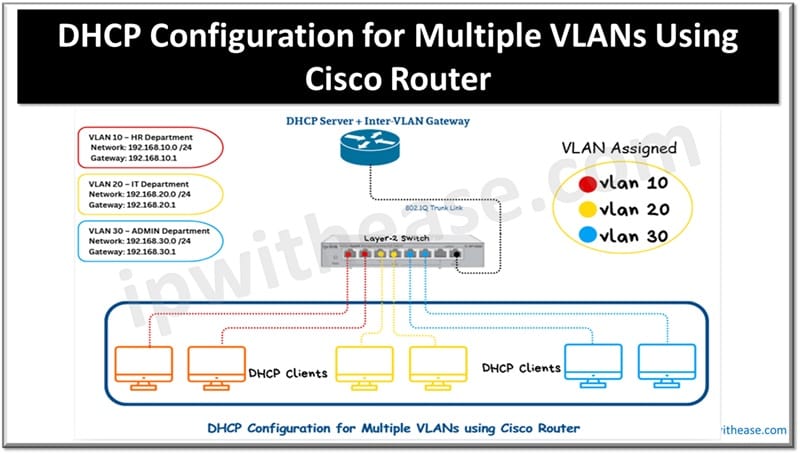
In this diagram:
- A Cisco Router acts as both DHCP Server and Inter-VLAN Gateway
- A Layer-2 Switch is used for VLAN segmentation
- Router and switch are connected via an 802.1Q trunk link
- End devices are DHCP clients placed in different VLANs
This setup rocks the classic Router-on-a-Stick approach—one physical router port juggling traffic from all VLANs through sub-interfaces
Network Scenario Used in This Blog
We are using the following VLAN and IP structure:
VLAN Details
- VLAN 10 – HR Department
Network: 192.168.10.0/24
Gateway: 192.168.10.1 - VLAN 20 – IT Department
Network: 192.168.20.0/24
Gateway: 192.168.20.1 - VLAN 30 – ADMIN Department
Network: 192.168.30.0/24
Gateway: 192.168.30.1
Each department receives IP addresses automatically from the Cisco router.
Basic Requirements Before Configuration
Get this sorted first, or DHCP flops:
- VLANs created on the switch
- Switch ports assigned right
- Router-switch link as trunk
- Router interface up (no shutdown)
Trust me, I’ve blown hours forgetting one.
Setting Up VLANs on the Switch
Fire up those VLANs to group your devices.
.

Switch(config)# vlan 10

Switch(config-vlan) # name HR

Switch(config)# vlan 20

Switch(config-vlan) # name IT

Switch(config)# vlan 30

Switch(config-vlan) # name ADMIN
Access ports connected to end devices should be assigned to their respective VLANs.
Trunk Link Configuration Between Router to Switch
That switch port to the router? Make it a trunk so all VLAN traffic flows over one cable.
Switch(config)# interface g0/1

Switch(config-if) # switchport mode trunk
The trunk carries VLAN-tagged traffic with 802.1Q encapsulation.
Router-on-a-Stick Configuration
Router side configure Sub-interfaces for per VLAN, each work as a gateway.
VLAN 10 Sub-Interface
Router(config)# interface g0/0.10

Router(config-subif) # encapsulation dot1Q 10

Router(config-subif) # ip address 192.168.10.1 255.255.255.0
VLAN 20 Sub-Interface
Router(config)# interface g0/0.20

Router(config-subif) # encapsulation dot1Q 20

Router(config-subif) # ip address 192.168.20.1 255.255.255.0
VLAN 30 Sub-Interface
Router(config)# interface g0/0.30

Router(config-subif)# encapsulation dot1Q 30

Router(config-subif)# ip address 192.168.30.1 255.255.255.0
These IPs become the clients’ default gateway.
Excluding Reserved IP Addresses from DHCP pool
Some IP addresses should not be assigned dynamically, such as router IPs, servers, or printers.
Router(config)# ip dhcp excluded-address 192.168.10.1 192.168.10.20

Router(config)# ip dhcp excluded-address 192.168.20.1 192.168.20.20

Router(config)# ip dhcp excluded-address 192.168.30.1 192.168.30.20
This ensures DHCP assigns IPs only to end devices.
DHCP Pool Configuration for Each VLAN
Now we configure separate DHCP pools for each VLAN.
VLAN 10 DHCP Pool
Router(config)# ip dhcp pool VLAN10_HR

Router(dhcp-config)# network 192.168.10.0 255.255.255.0

Router(dhcp-config)# default-router 192.168.10.1

Router(dhcp-config)# dns-server 8.8.8.8
VLAN 20 DHCP Pool
Router(config)# ip dhcp pool VLAN20_IT

Router(dhcp-config)# network 192.168.20.0 255.255.255.0

Router(dhcp-config)# default-router 192.168.20.1

Router(dhcp-config)# dns-server 8.8.8.8
VLAN 30 DHCP Pool
Router(config)# ip dhcp pool VLAN30_ADMIN

Router(dhcp-config)# network 192.168.30.0 255.255.255.0

Router(dhcp-config)# default-router 192.168.30.1

Router(dhcp-config)# dns-server 1.1.1.1
Each VLAN now has its own DHCP scope.
How DHCP Works in This Setup
When a client device is connected to the network:
- It sends a DHCP request
- The switch forwards the request within the VLAN
- The router sub-interface receives the request
- The router selects the correct DHCP pool
- The client receives IP, gateway, and DNS automatically
This entire process happens within seconds.
Test It Out
Router checks:
- show ip dhcp binding
- show ip dhcp pool
Client side: IP should match the VLAN subnet. Ping the gateway to celebrate.
Common Mistakes to Avoid
- Trunk port not configured
- Wrong VLAN ID on sub-interfaces
- Incorrect network statement in DHCP pool
- Missing default gateway
- No excluded IP addresses
Avoiding these mistakes for smooth DHCP operation.
Real-World Use Cases
This configuration is widely used in:
- Corporate offices
- Training institutes
- Colleges and campuses
- Call centers
- Small and medium enterprises
It is especially useful where a dedicated DHCP server is not available.
Conclusion
Using a Cisco router as a DHCP server for multiple VLANs is a reliable and cost-effective solution. With proper VLAN segmentation and DHCP pool configuration, networks become easier to manage, scalable, and secure.
ABOUT THE AUTHOR

You can learn more about her on her linkedin profile – Rashmi Bhardwaj