Table of Contents
An external drive that once held two volumes now shows a single volume and a large area marked Unallocated. If the missing area contained files, creating a new volume is not the next step. Stop writing to the disk and establish what has happened to its partition layout.
To recover a lost partition, you need to distinguish two outcomes: copying surviving files to another device and restoring the partition entry that lets Windows locate an existing volume. Recoverit partition recovery provides a Windows workflow for identifying possible lost partitions. Finding a candidate is the start of verification, not proof that the original layout can be restored intact.
Confirm the Missing Partition before Changing the Disk
Connect the drive using a stable cable and its required power supply. In Windows 11, right-click Start and open Disk Management. Identify the external disk by its capacity and model where available. Record its existing volumes, the approximate size of the missing area, and whether the disk reports a plausible total capacity.
Unallocated space means Windows does not currently recognize an allocated volume there. It does not establish that the underlying files have been erased. Possible causes include a deleted partition entry, damaged partition information, or a previous operation that changed the layout.
A RAW volume is a different finding: a partition may still exist, but Windows cannot interpret its file system. Likewise, a healthy volume without a drive letter is not the same as a deleted partition. Check these distinctions before choosing a recovery mode.
Do not initialize a previously used disk, create a New Simple Volume over the missing area, or format it to make it visible. Those operations can change information needed for recovery. If the drive repeatedly disconnects, clicks, or reports the wrong capacity, stop and seek specialist assessment rather than treating it as a routine partition problem.
Related: What is RAID (Redundant Array of Independent Disks)?
Choose the Outcome you Actually Need
If your immediate goal is to retrieve documents or project folders, a file recovery route may be enough. It copies recoverable content elsewhere without claiming to restore the source disk’s partition layout. If you need the original volume to become accessible again, partition reconstruction involves a separate decision about writing partition information back to the disk.
| Goal | What success means | What it does not prove |
|---|---|---|
| Retrieve important files | Verified files open from a separate destination | The lost partition has been rebuilt |
| Restore a partition entry | The intended volume is recognized again | Every file is complete or undamaged |
| Recover files after restoration | Previously missing content can be copied and opened | All deleted files are now available |
Check backups before either route. A complete recent copy may remove the need to modify the original disk at all. If this is the only copy of valuable data, obtaining a sector-level image through an appropriate recovery setup can preserve a working source; unstable hardware warrants professional help before imaging.
Assess Lost Partitions with Recoverit
Recoverit V15’s Partition Recovery is a Windows feature. It searches for possible previous partitions, displays candidate layouts, and lets you inspect contents before selecting a partition. Its partition-table backup, verification, and rollback mechanisms help manage the process, but they do not make structural changes risk-free.
Install the application on a healthy disk. Prepare another physical drive with enough room for the files you eventually retrieve. Keep the external drive connected throughout the operation, and close applications that might write to it.
Step 1 Select the Physical Disk that Lost the Partition
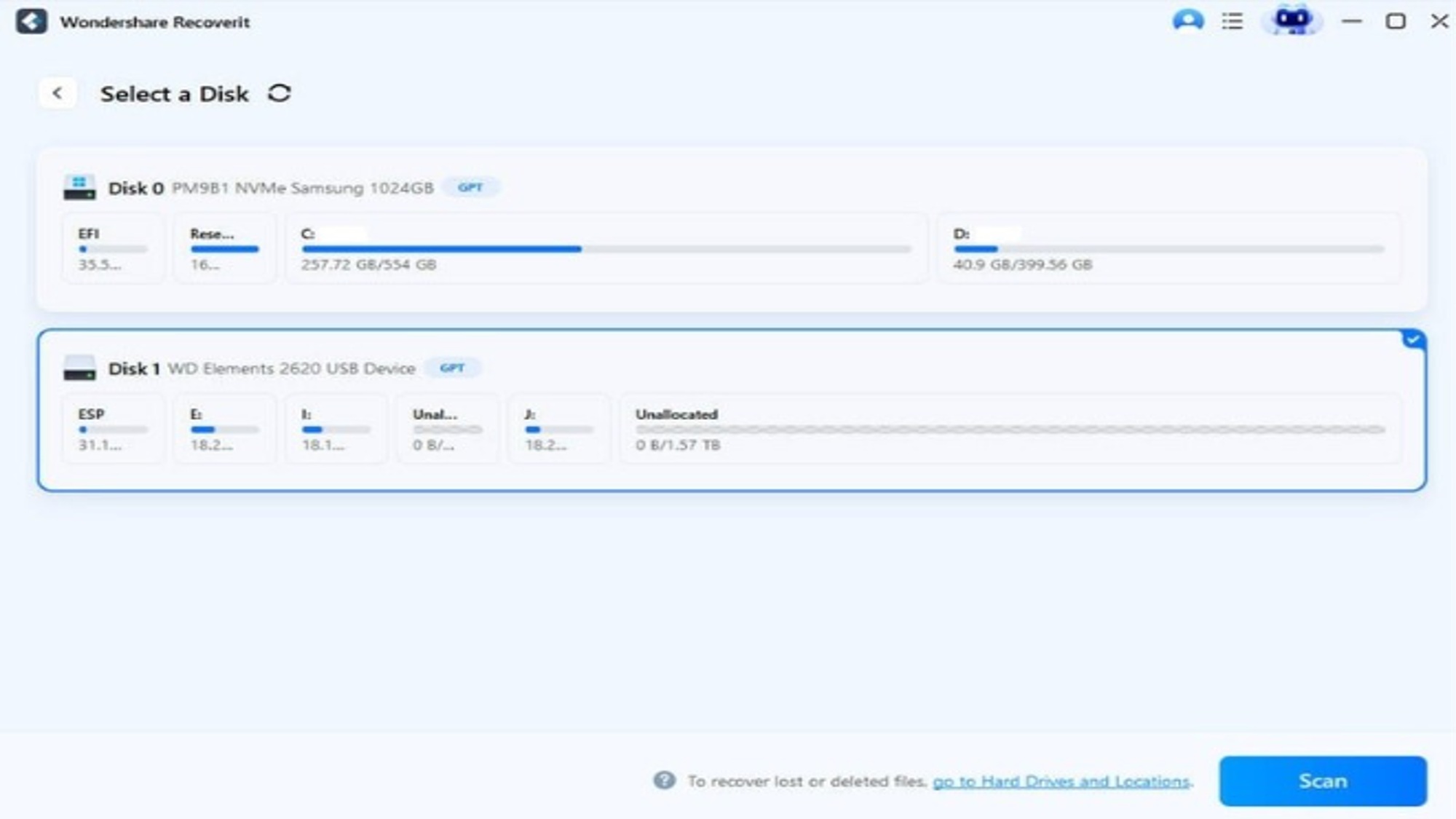
Open Recoverit, choose Partition Recovery in the sidebar, and click Start. On Select a Disk, identify the external disk using its capacity and layout. Select that physical disk and click Scan. The displayed layout helps you confirm the source before the program examines its sectors.
Step 2 Scan and Examine the Lost Partition Candidates
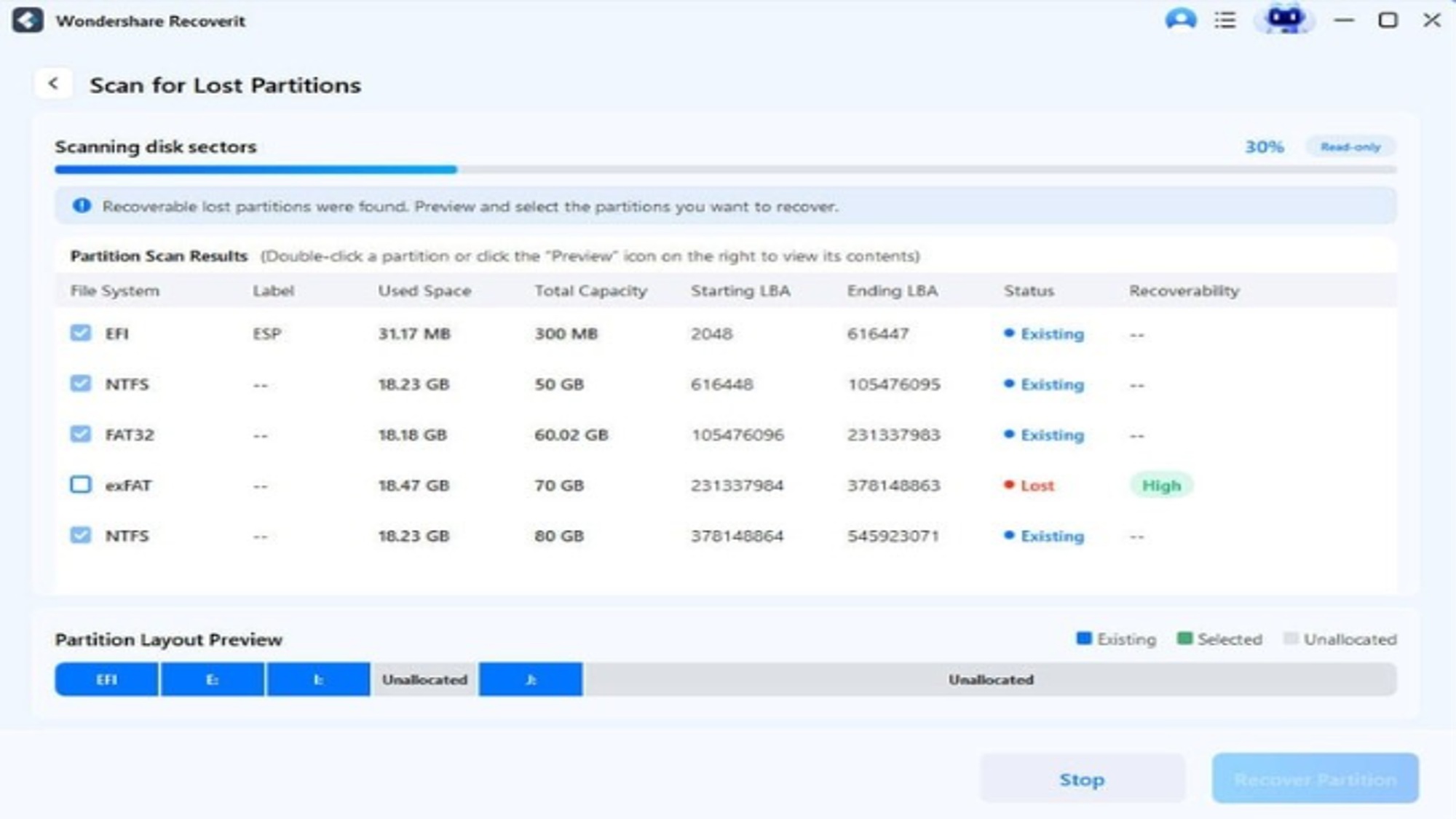
Allow the partition scan to progress. The results distinguish Existing entries from Lost entries and show details such as file system, capacity, and location. Double-click a candidate or use its Preview icon to inspect the contents. Look for a combination of familiar folders and an expected size; a promising status alone is insufficient.
Step 3 Verify the Candidate and Choose How to Proceed
After scanning, review the candidate and Partition Layout Preview. If you intend to reconstruct that partition, select the correct Lost entry, choose Recover Partition, and read the confirmation that it will restore an entry in the disk’s partition table. Continue only when the layout matches your intended recovery. Keep the connection stable until the operation finishes.
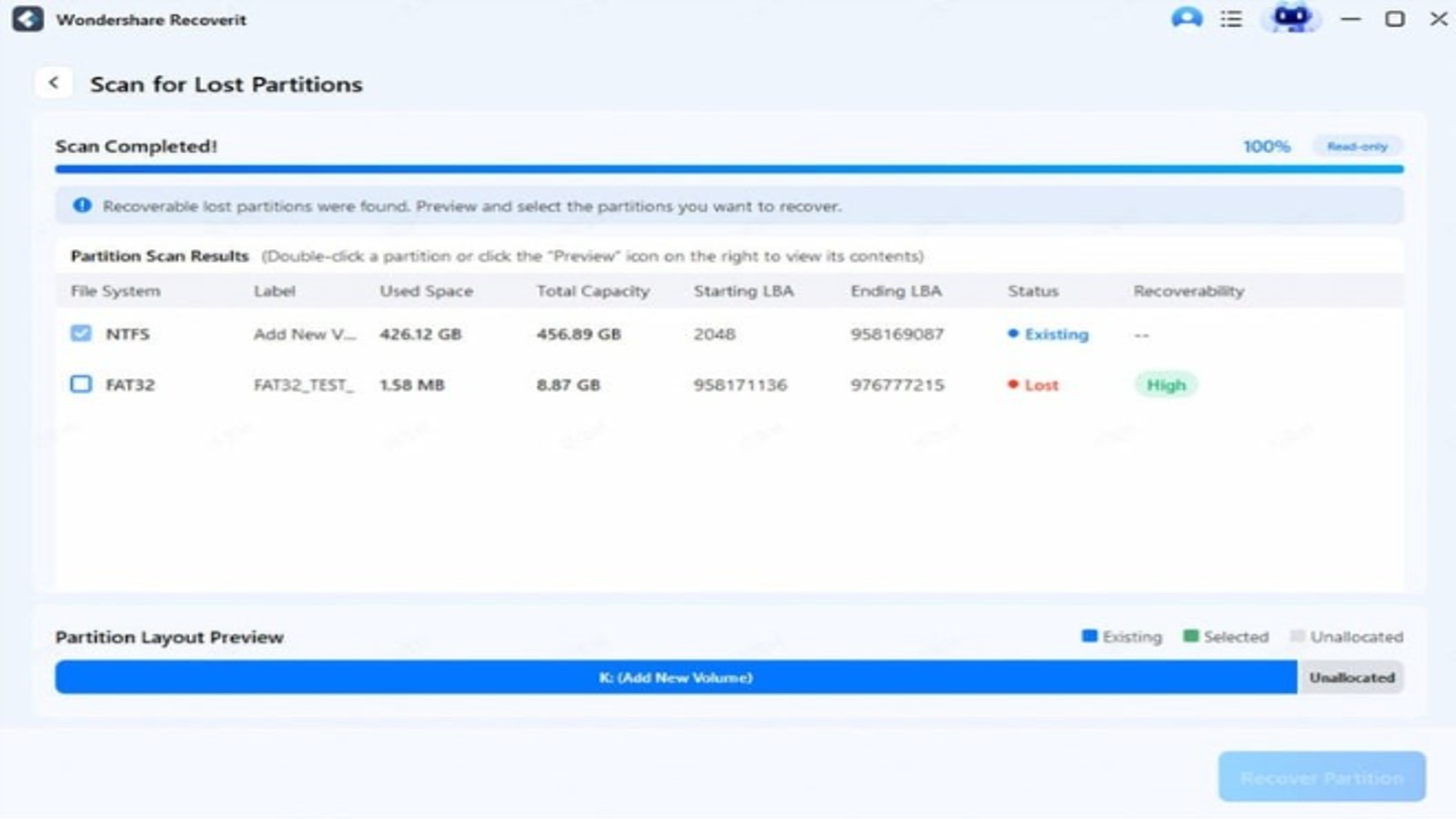
If Windows subsequently mounts the volume, copy its important files to the prepared destination and test them. This is the point at which you verify access to the files; a completed partition operation is not a substitute for that check.
If your priority is file extraction rather than structural restoration, avoid confirming a partition-table write merely to reach a familiar-looking disk layout. Use Hard Drives and Locations when it exposes an appropriate scan target, or obtain assistance with a data-first recovery route. Do not create or format a volume to manufacture that target.
Validate Files before Reusing the Drive
When you recover files from a lost partition, prioritize files that are hard to replace. Open a sample from each important folder and format. Check spreadsheet contents, document pages, archive extraction, and video playback beyond the first frame. Compare the recovered set with any folder lists or project records you retained.
Folder names and timestamps can help, but they may be incomplete. A recovered filename does not establish that the file contains all its original data. Files overwritten by later use cannot be recreated simply by restoring the partition entry.
Keep the source disk unchanged until you have a verified copy and a second backup. Only then consider repairing, repartitioning, or replacing it. Persistent read errors suggest that it should not return to normal storage duties without further assessment.
FAQs
Q.1 Can software recover a deleted partition after I created another one?
It may identify older structures, but the new layout and subsequent writes can reduce what remains recoverable. Stop using the disk and disclose the changes when seeking help. Do not repeatedly delete and recreate volumes to test different layouts.
Q.2 Does Unallocated mean the files are gone?
No. It describes how Windows currently interprets the layout. Some contents may remain, but detection, preview, and file verification are needed to establish what can be recovered.
Q.3 Does a file recovery scan rebuild the partition?
No. Copying files elsewhere and restoring a partition entry are distinct operations. Document which outcome occurred so the drive is not mistakenly treated as fully restored.
Conclusion
For a lost partition on a healthy external drive, Recoverit is a solid choice. Its biggest strength is the preview step. You can see a lost partition’s size, file system and actual folders before restoring anything, which takes the guesswork out of a risky job. Partition-table backup and rollback add a useful safety net.
It has limits, though. Partition Recovery runs on Windows only, a detected partition doesn’t guarantee every file survived, and no software can fix a failing drive. For clicking or disconnecting hardware, go to a professional.
Verdict: it’s recommended for logical partition loss, especially if you prefer a guided, visual tool. Scan, preview carefully, and copy your important files to a separate drive and check they open before you call the job done.
ABOUT THE AUTHOR

IPwithease is aimed at sharing knowledge across varied domains like Network, Security, Virtualization, Software, Wireless, etc.