Table of Contents
If you ask a random user why they decided to buy a Mac, almost everyone will give you similar answers. Macs are known for their efficiency, exclusivity, and safety; the latter holds particular importance, but it also leads to a sea of misconceptions.
Macs are safe, there is no doubt here; Apple’s built-in protection is strong and resilient in a way that other systems can’t hope to replicate. However, it’s not infallible, and since most users believe otherwise, whenever their data gets stolen or compromised, they feel completely, hopelessly blindsided. Learn the essential Mac privacy and security tips, and enjoy safe and discreet web browsing.
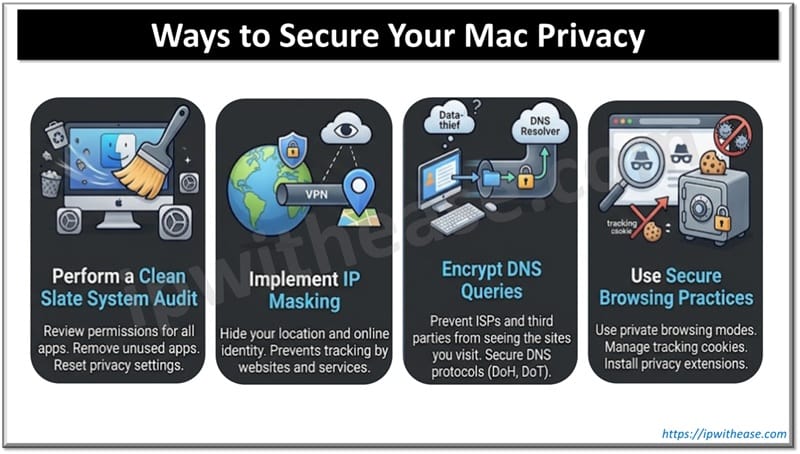
Four Ways to Secure Your Mac Privacy
We will focus on four vital strategies for securing your privacy and making Internet browsing truly safe. This is what you’ll have to do.
Perform a Clean Slate System Audit
Many users try to improve their online privacy by installing an army of apps. VPNs, safe search engines like DuckDuckGo, browser extensions: on the one hand, they can be effective, but on the other, the more of them you have, the more likely they are to clash.
To achieve secure browsing Mac, you need to perform a clean slate system audit. In other words, you have to remove the majority of your apps, search engines, and extensions; be sure to read more here to understand how to delete DuckDuckGo for your audit, as this can get tricky and time-consuming. Once your system is clean, you can start building your Mac security setup properly.
Implement IP Masking
After cleaning your system, the next step in macOS network hardening requires thorough IP masking. It will prevent websites and malicious parties from barging in, pinpointing your real location, and endangering your data. This is how you do it:
- Use one reliable VPN. Do a little research and choose providers with strict no-logs policies. Avoid free extensions, and never download more than one VPN. If you really need several options, be sure to disable one before using the other.
- Configure VPN properly. Avoid relying on a browser VPN alone. On your Mac, go to your System Settings and choose Network. Set up your VPN profile in there to make sure that all the data is routed securely.
- Use privacy-focused engines. You can use Tor or reinstall DuckDuckGo: they make tracking next to impossible. Don’t overdo it, though. Choose one safe search engine, and if you aren’t satisfied with it, remove it with Mac cleaners before downloading another one.
Remember about limitations, too: VPN is a powerful tool for protection, but it doesn’t make you fully invisible. To achieve complete safety, you’ll have to combine it with other strategies.
Encrypt DNS Queries
Whenever you visit a website, your Mac sends a DNS request to translate the name of the domain into an actual IP address. So, even if your content is already encrypted, these DNS requests still disclose every single online platform you visit, and that’s something you want to avoid if privacy matters to you.
How to do that? You need to encrypt your DNS queries, too. Don’t worry, it’s easier than it sounds. Choose between the following solutions:
- Use a special DNS app. Download apps like Cloudflare’s 1.1.1.1 or NextDNS: they will encrypt your Mac’s DNS requests automatically. This solution is the simplest, as it requires minimal effort.
- Do a manual macOS setup. Go to Wi-Fi in your Mac’s network system settings; choose “Details,” and then click on “DNS.” Replace your real Internet service provider there with something like 1.1.1.1.
- Choose a VPN with encrypted DNS. Some modern VPNs automatically route DNS through their encrypted servers, so by choosing one of them, you can pull off two security steps at once.
After you implement one of these strategies, go to websites that provide DNS Leak Test and check what they say. If they show your Internet service provider, the method didn’t work, so you’ll need to try another one. If you see Cloudflare or any other provider you’ve personally chosen, then congratulations, you are one step closer to staying safe.
Use Secure Browsing Practices
To minimize all kinds of risks and dangers, harden your Safari or whatever browser you are using. To do that, you need to get acquainted with the following Mac security tips:
- Disable third-party cookies completely. Some cookies are harmless, sure, but third-party cookies allow advertisers to track your activities across different websites. Make sure they can’t do it by turning this feature off.
- Avoid auto-filling sensitive information. While it might be tempting to allow the system to remember your login and password combinations, it is extremely dangerous. If your browser safety is compromised, all this data will be leaked.
- Turn on Intelligent Tracking Prevention. If you stick to Safari, you can turn on the ITP feature, aka Intelligent Tracking Prevention. It’s Mac’s built-in tool that blocks a decent number of malicious scripts and trackers.
- Clean your browser and your Mac. Clear your browser’s history, cache, and cookies regularly; it’s best to use Mac-focused cleaning tools that will take care of your entire system.
By using safe browsing practices on your Mac and installing the vital cleaning tools that will keep your system optimized, you can rest assured that you remain safe no matter how much time you spend online.

Keep Your Mac Secure and Browse the Web Safely
Hopefully, you understand how to explore online spaces from your Mac safely now. You might not be able to remove every trace of your presence, but you can encrypt it and remain a ghost that can’t be pinned down.
For that, remove all the apps and extensions you’re currently using and which might be in conflict. After that, configure essential Mac security settings, including installing the VPN, encrypting your DNS requests, and using other recommended browsing strategies. Mac is already as secure as such devices can be, so cover it with an extra layer of protection and enjoy the feeling of total safety.
Continue Reading
Intermittent VPN Flapping Issues
ABOUT THE AUTHOR

IPwithease is aimed at sharing knowledge across varied domains like Network, Security, Virtualization, Software, Wireless, etc.