Table of Contents
To improve efficiency of operations often specific compute intensive tasks are offloaded from computer CPU to specialized hardware components such as GPU and audio cards. This is usually done on systems which are used for rendering graphics, video or audio. This technique is popularly known as hardware acceleration however, when this technique is applied in web browsers then it improves browser performance and ensures faster web page rendering having graphics and smooth media playback.
In today’s article we will learn about how to turn on and off hardware acceleration in Chrome web browser.
Hardware Acceleration in Chrome
Hardware acceleration is used when a computer program uses a computer hardware to perform certain functions more efficiently better compared to itself. The hardware is meant to perform some functions faster than the software running on the system. In Chrome hardware acceleration uses a computer graphic processing unit or GPU to handle resource intensive graphic tasks such as playing games, videos, and complex mathematical calculations. GPU runs the specific tasks and CPU is free to do other tasks.
However, hardware acceleration at times can cause chrome to freeze, lag or crash and lead to laptop battery drain faster.
Steps to Turn OFF and ON hardware acceleration in Chrome browser
By default, hardware acceleration is ON in the chrome browser to turn it off following the below steps.
Step 1
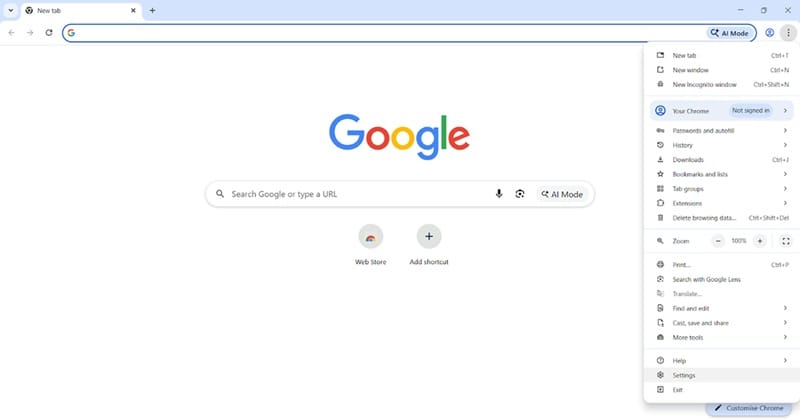
Open Chrome browser
Step 2
Click on three dots on right side and click on settings
Step 3
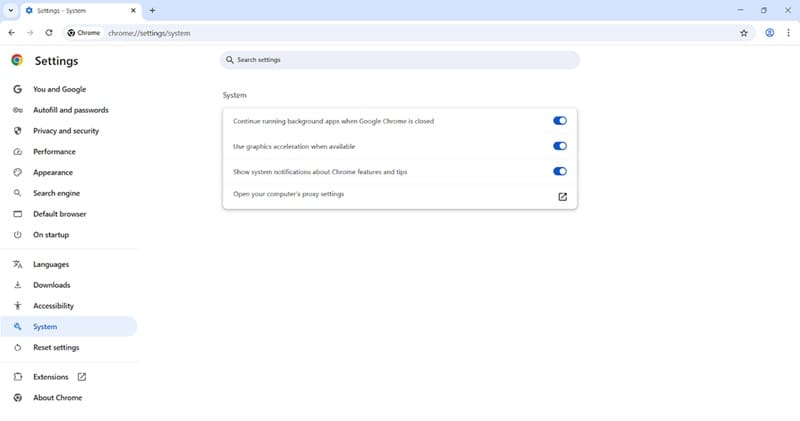
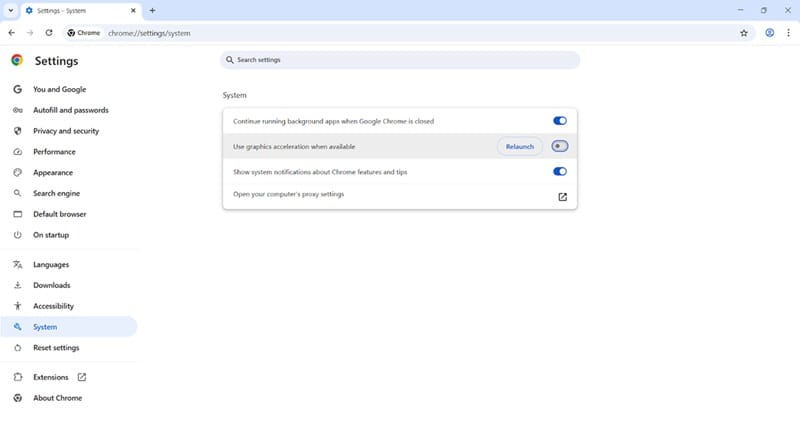
Click on system
Step 4
Toggle radio button to turn OFF hardware acceleration
Step 5
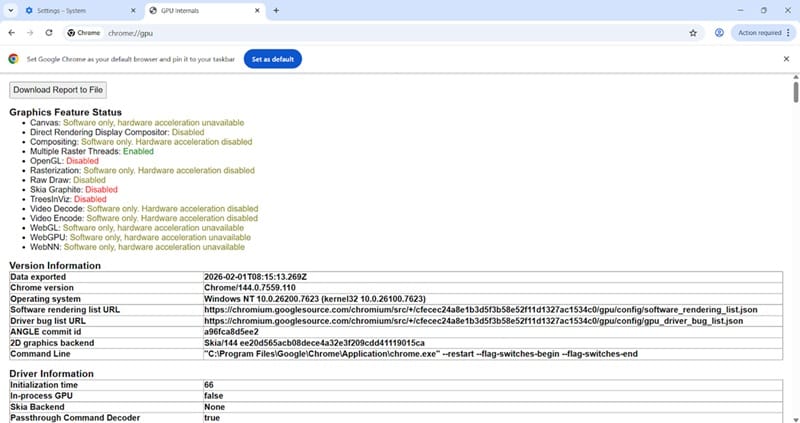
To verify it is fully turned off type
chrome://gpu/
Step 6
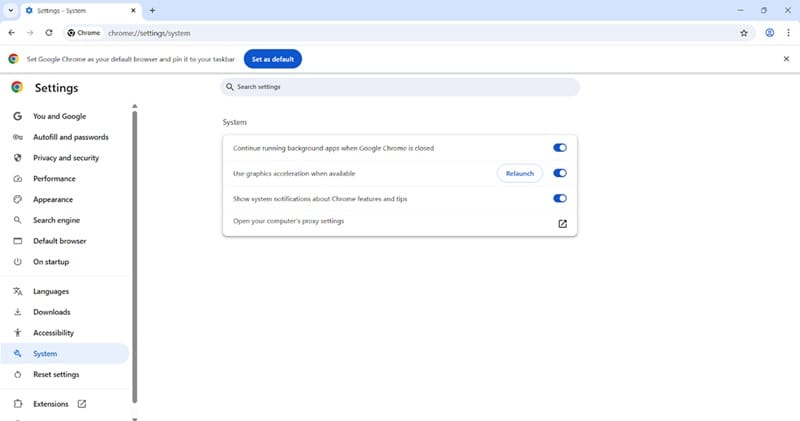
To enable hardware acceleration again
Related: How to Disable Automatic Downloads in Chrome
ABOUT THE AUTHOR

You can learn more about her on her linkedin profile – Rashmi Bhardwaj